
Environment variables that work everywhere
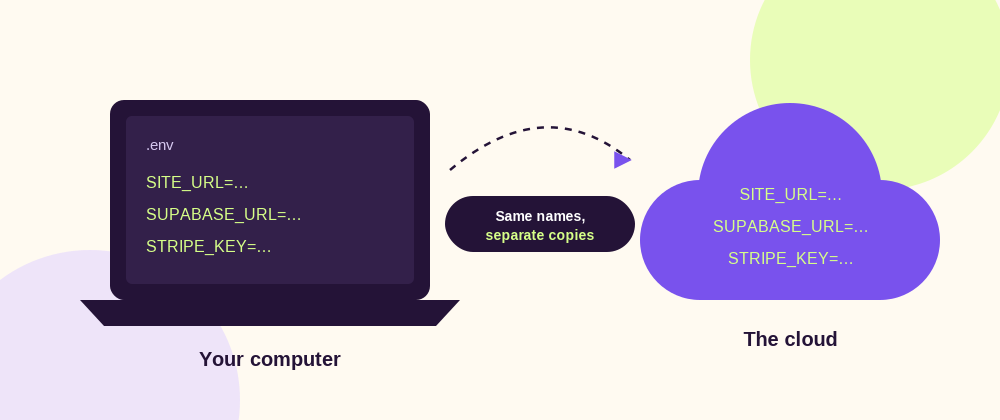
Everything works on your computer. Then you open Claude Code in the cloud, or deploy your site, and none of your keys work. Nothing is broken: each place keeps its own copy of your settings, and the cloud was never given one. This guide explains every term from zero and gives you a routine that keeps them all in sync.
Understand it
Know what an environment variable is
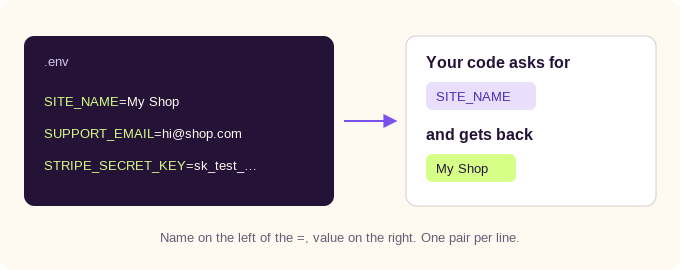
An environment variable is a named setting that lives outside your code. The name stays the same wherever the code runs, for example STRIPE_SECRET_KEY. The value can change from place to place: a test key on your computer, the live key on your real website.
A .env file (say "dot env") is a plain text file in your project folder that holds those name and value pairs. When your app starts, it reads the file and your code asks for each value by its name.
- Each line is one pair: the name, an equals sign, then the value. No spaces around the
=. - Names are written in capitals with underscores, like
SITE_NAME. - A line that starts with
#is a note for humans. The app ignores it.
Can't see your .env file? (Mac)
Files that start with a dot are hidden by default. Open your project folder in Finder and press Command + Shift + . (period) to show them. Press it again to hide them.
.env, it is a short list of lines shaped like NAME=value. If it has none yet, that is fine: step 6 makes one.Understand it
Keep .env out of GitHub
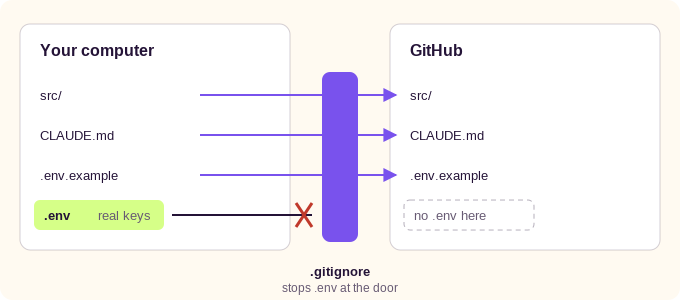
Your .env holds real keys, so it must never be uploaded to GitHub, even in a private repo. A file called .gitignore tells git which files to leave behind. Two lines cover it.
.env*
!.env.example
The first line skips every file whose name starts with .env, such as .env and .env.local. The ! on the second line makes one exception, so the list from step 3 still gets shared.
- Ask Claude: "Check that my .gitignore keeps every .env file out of git, and tell me if a .env was ever committed. Don't show me any values."
- If the lines are missing, let Claude add them before you do anything else with your keys.
Understand it
Make a .env.example
Your .env stays on your computer, so how does anyone else (a new laptop, a cloud session, Claude itself) know which settings the project needs? With a second file, .env.example: the same names, with the values left blank. It is safe to share, so it goes to GitHub with your code.
- Ask Claude: "Make a .env.example from my .env. Keep every name, leave every value blank, and add a short comment above each one saying what it is for and where to get it."
- Read it and check no real value slipped in.
- Treat it as the official list. Whenever you set up the project somewhere new, you work through it top to bottom.
# Public: your Supabase project URL, from your project's settings
VITE_SUPABASE_URL=

# Public: the Supabase publishable (or anon) key, safe in the browser
VITE_SUPABASE_PUBLISHABLE_KEY=

# Secret: Stripe secret key. Server only. Use sk_test_ outside production.
STRIPE_SECRET_KEY=
These names are examples. Keep whatever names your project already uses.
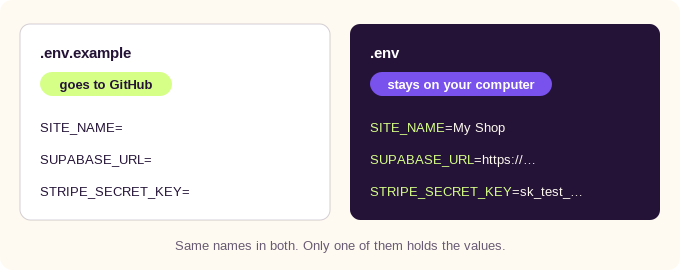
.env.example. It is uploaded on purpose, so anything in it is shared.Understand it
Tell public keys from secret keys
Not everything in your .env is a secret. Some values are meant to reach the browser. Any name that starts with VITE_ or NEXT_PUBLIC_ gets built into the page code that every visitor downloads. That is by design for publishable keys, like Stripe's pk_ key or Supabase's publishable (anon) key, which can only do what your settings allow.
Secret keys are different. A Stripe secret key or a Supabase secret (service_role) key can read, change or charge almost anything. They belong only on a server.
- Public keys are fine to show Claude, paste in chat, or leave visible in a screenshot.
- Secret keys go straight into the file or dashboard, typed by you. Not into the chat.
- Never give a secret key a
VITE_orNEXT_PUBLIC_name.
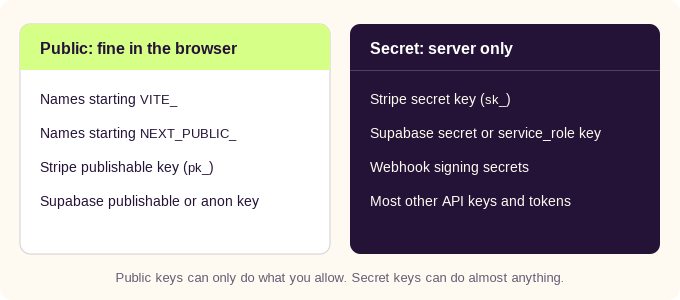
VITE_ or NEXT_PUBLIC_ name stops being secret. Anyone can open your site's code in their browser and copy it. If that has happened, rotate the key (see step 2).Give each place its copy
See why the cloud can't find your keys
This is where most people get stuck. A Claude Code cloud session (one you start at claude.ai/code, on your phone, or under Cloud in the desktop app) runs on a computer Anthropic manages, not yours. It starts from a fresh copy of your project on GitHub. Your .env was never on GitHub, because step 2 kept it off, so the cloud starts without it. Even when Claude Code uploads your folder directly instead of using GitHub, it leaves .env files behind on purpose.
Your live website works the same way. Vercel and Supabase build from GitHub too. So every place that runs your code needs its own copy of the values:
- Your computer: the
.envfile. - Claude Code in the cloud: the environment variables on your cloud environment.
- Vercel (your website): the project's Environment Variables page.
- Supabase (your backend functions): Edge Function Secrets.
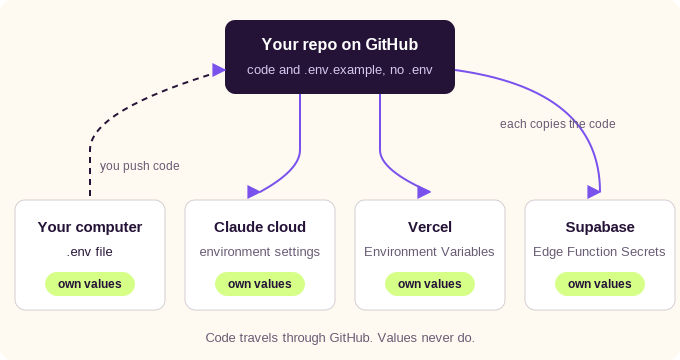
Give each place its copy
Fill in your local .env
Start at home. Your computer's copy is the .env file in the project folder, built from the list in .env.example.
- Ask Claude: "Create .env from .env.example with every value left blank. I'll paste the values in myself."
- Open each service's dashboard, copy the key, and paste it after the
=. No quotes, no spaces. - Save the file, then stop and restart your app so it reads the new values.
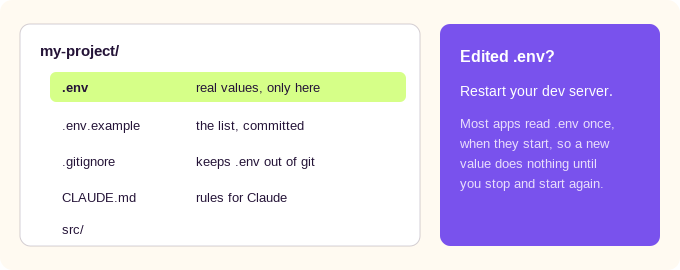
SUPABASE_URL and point at completely different databases. Never copy a value across because the name matches. Look it up in that project's own dashboard.Give each place its copy
Add them to your Claude Code cloud environment
Every cloud session runs inside a cloud environment: a saved setup that controls what the session can reach on the internet, a setup script, and its environment variables. Your first one is called Default and starts with no variables at all. That is why the cloud felt empty.
- At claude.ai/code, on the screen where you start a new session, open the environment selector. It is the first control in the row under the message box.
- Pick New environment at the bottom of the menu, or hover over an existing one under Cloud and select the settings icon on its right. In the desktop app it is the same selector: New environment, then the Cloud tab, or the gear icon to edit.
- Select the Environment variables row and paste your
NAME=valuelines, in the same format as your.env. Put quotes around any value that contains a#. - Save with Add environment or Save changes, then start a new session. A session that is already running keeps the old values until it restarts.
Make one environment per project and name it after the project, so one project's values never end up in another.
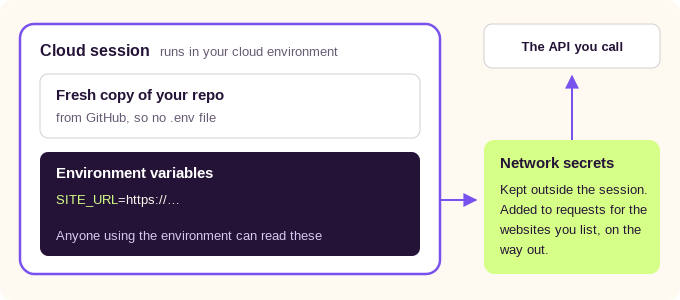
Give each place its copy
Add them to Vercel
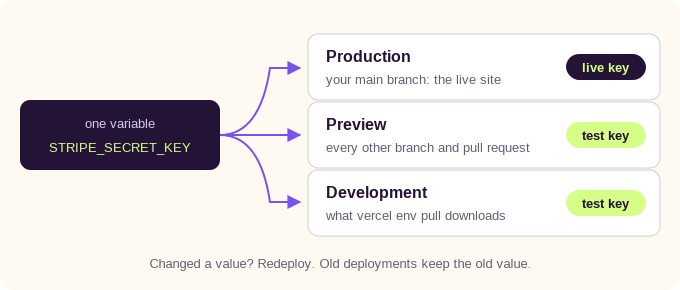
If your site is hosted on Vercel, it builds from GitHub too, so it needs its own copy. Vercel lets one variable hold a different value for each kind of deployment.
- Open your project in the Vercel dashboard and select Environment Variables in the sidebar.
- Enter the Name and Value, then pick where it applies: Production (your main branch, the live site), Preview (every other branch and pull request) or Development (for your computer).
- Mark keys as Secret rather than Config. Vercel then won't show the value again after you save it.
- Click Save, then redeploy. Changes only reach new deployments.
Shortcut: pull Vercel's values down to your computer
If you use the Vercel command line tool, vercel env pull downloads the Development values into a .env file in your project. It writes the file for you, so check it didn't replace anything you only had locally.
Give each place its copy
Add them to Supabase
Supabase edge functions are small bits of backend code that run on Supabase's servers. This is where secret keys like Stripe's usually live, because the browser never sees them. Edge functions read their own list, called Edge Function Secrets.
- On the dashboard, open your project's Edge Function Secrets page, enter a Key and Value, and click Save. You can paste several at once.
- Or let Claude do it from your computer with the Supabase command line tool:
supabase secrets set --env-file supabase/functions/.env. Thensupabase secrets listshows the names that are set. - No redeploy needed. Your functions pick up new secrets right away.
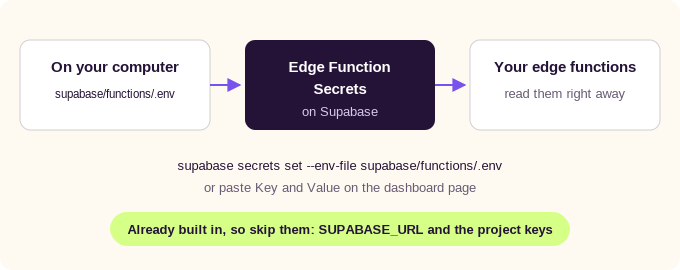
supabase/functions/.env, which the .env* line already keeps out of git.SUPABASE_URL and the project's own keys, so don't add those yourself. Your own names can't start with SUPABASE_. The secret (service_role) key skips your database's security rules, so it belongs here and nowhere near a VITE_ or NEXT_PUBLIC_ name.Keep them in sync
Follow one routine for every new key
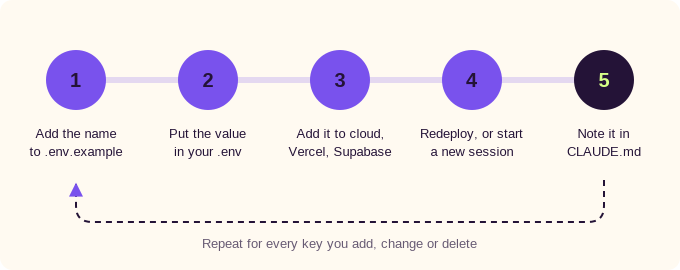
Things drift out of sync one key at a time. You add a new service locally, it works, and three weeks later the cloud session or the live site breaks. Run the same loop every time a key is added, changed or deleted.
- Add the name to
.env.examplewith a comment, and commit it with the change that uses it. - Put the value in your local
.env. - Add it to each place that runs code needing it: your cloud environment, Vercel (the right environments) and Supabase.
- Redeploy Vercel, or start a new cloud session, then note it in CLAUDE.md (next step).
Keep them in sync
Write the rules into CLAUDE.md
CLAUDE.md is the file Claude reads at the start of every session in your project. Put your variable list and your rules there once, and Claude follows them in every session, on your computer and in the cloud, without you repeating yourself.
- Paste the snippet below into your project's CLAUDE.md.
- Swap the example rows for your own variables. Ask Claude to fill the table from
.env.exampleif you like. - Commit it, so cloud sessions get it too.
## Environment

.env.example is the list of every variable this project needs.

| Variable                      | Type   | Lives in                          |
|-------------------------------|--------|-----------------------------------|
| VITE_SUPABASE_URL             | public | .env, cloud environment, Vercel   |
| VITE_SUPABASE_PUBLISHABLE_KEY | public | .env, cloud environment, Vercel   |
| STRIPE_SECRET_KEY             | secret | Supabase Edge Function Secrets    |

Rules:
- Values belong to this project only. Never copy one from another project,
  even when the name matches.
- Never print, log or commit a secret value. Refer to secrets by name.
- Public values (VITE_, NEXT_PUBLIC_, publishable keys) are fine to show.
- Never give a secret key a VITE_ or NEXT_PUBLIC_ name.
- When you add a variable, add its name to .env.example in the same change
  and tell me every place that needs a value.
- If .env is missing, offer to create it from .env.example with blank
  values. Never make up values.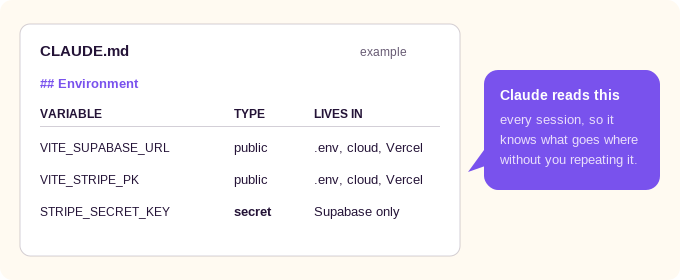
Get the free setup checklist
Every step from this guide on two pages: the one-time setup, where each copy of your keys lives, the routine for new keys, and the CLAUDE.md section ready to paste.
 Setup checklist2 pages: one-time setup, where each copy of your keys lives, routine for new keys.
 CLAUDE.md sectionAn Environment section you can paste into your project.