
Keep your Claude setup fresh
Your Claude setup goes stale on its own. Apps add tools, logins expire, memory holds old facts and scheduled tasks fail quietly. This guide explains each part in plain words and gives you a routine that takes ten minutes a week.
Get the picture
Know why your setup goes stale
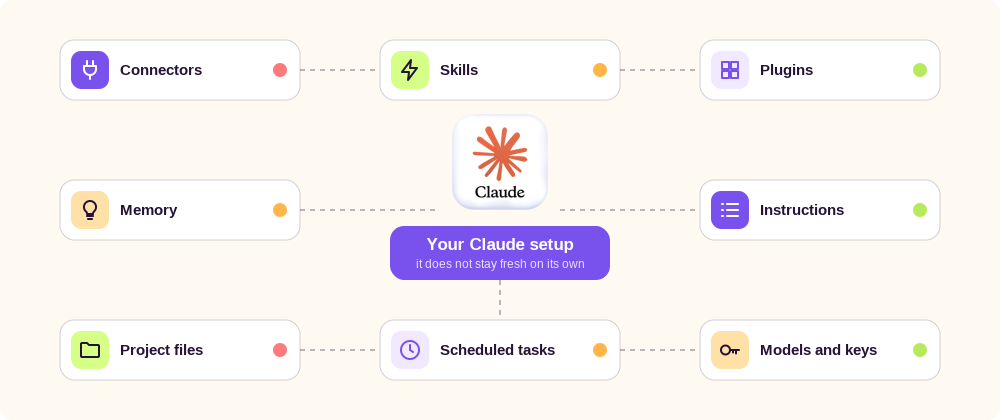
When you first set Claude up, everything matches how you work that day. Then things move. The apps you connected add features. Logins expire. You change tools, prices and team members. Claude keeps working from whatever it was given, so it slowly drifts out of date without telling you.
Your setup has eight parts that drift. You don't need to understand them all today. This guide takes them one at a time, in plain words.
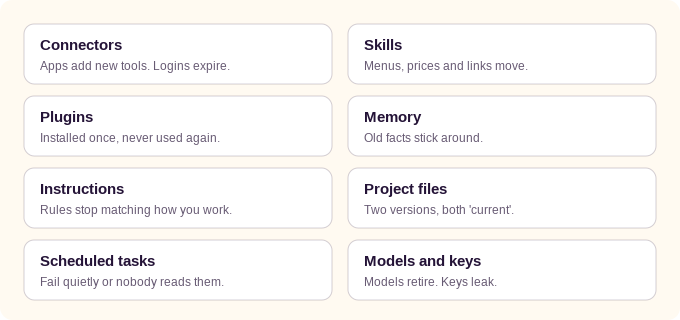
- Stale doesn't mean broken. Most of the time Claude still answers, just with old facts, missing tools or extra clutter.
- The fix is a habit, not a big clean-up: a few minutes a week, half an hour a month.
Get the picture
Learn the weekly, monthly and quarterly rhythm
Small and regular beats big and rare. Each check sits where it makes sense: fast things weekly, slower things monthly, and the heavy lifting a few times a year. There is also a short list of moments when you should check right away.
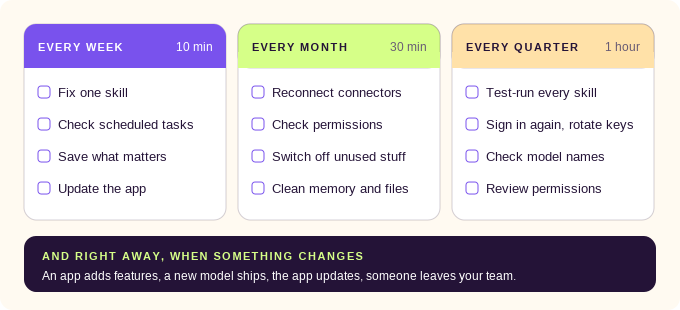
- Weekly, 10 minutes: fix one skill, glance at scheduled tasks, save what matters, update the app.
- Monthly, 30 minutes: reconnect connectors, check permissions, switch off what you didn't use, clean memory, instructions and files.
- Quarterly, 1 hour: test-run skills, sign in again and rotate keys, check model names, review permissions.
- Right away: when an app adds features, a new model ships, the app updates, or someone leaves your team.
Check each part
Reconnect your connectors
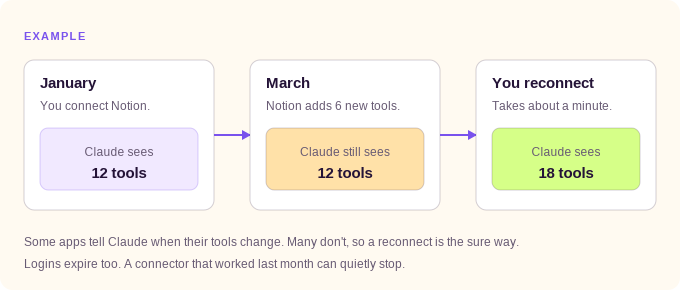
A connector links Claude to another app, such as Gmail, Notion or Slack. It gives Claude a set of tools for that app, like "search pages" or "draft an email". When the app adds new tools, some apps tell Claude and the list updates. Many don't, so Claude keeps working with the old list until you reconnect.
Where to find it
- In the Claude app: open Customize, then Connectors. Pick a connector, disconnect it, then connect it again and sign in.
- In Claude Code: type
/mcp. It lists each connection with its tool count./mcp reconnectfollowed by the name reconnects one.
- Do it monthly for the connectors you rely on, and right away when an app announces new features.
- Write down the tool count. Next month, a different number tells you something changed.
- Two connectors to the same app? Check first: they may be signed in to two different accounts on purpose. Remove true duplicates, because they confuse Claude about which to use.
- Remove connectors you no longer use. Each one adds tools Claude has to consider in every chat.
Check each part
Check what each connector may do
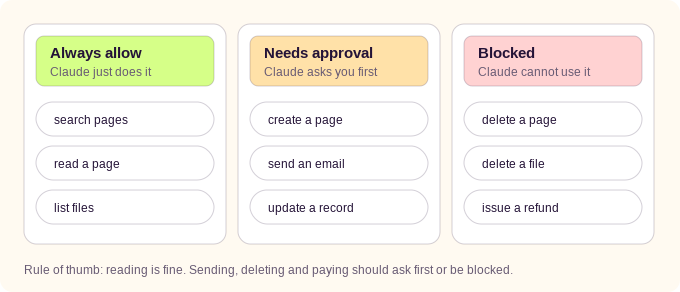
Every connector tool has a permission. Reading is low risk. Sending, deleting and paying are not. When a connector gains new tools, check what they are allowed to do, the same way you would check a new app on your phone.
Where to find it
- In the Claude app: in Customize > Connectors, pick a connector and open Tool permissions. Each tool can be Always allow, Needs approval or Blocked.
- In Claude Code: type
/permissionsto see the allow, ask and deny rules.
- Set anything that sends, deletes, publishes or pays to Needs approval, or Blocked if you never want it.
- Look again after every reconnect. New tools are where surprises hide.
- On a Team or Enterprise plan, an admin may set these for you.
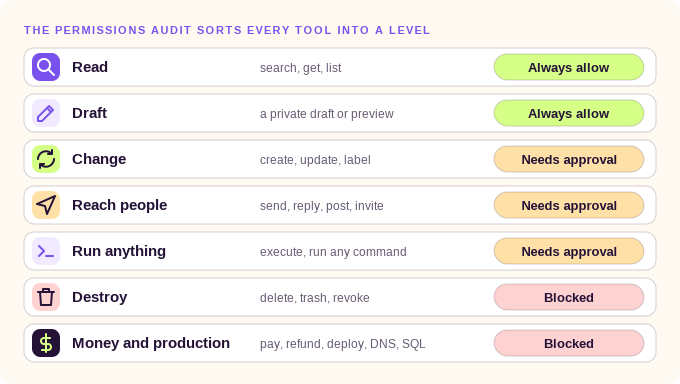
Let Claude sort them for you. Big connectors have dozens of tools, and some have hundreds. The free download includes a second skill, connector-permissions-audit, that reads every tool's name and description (without running any of them), puts each one on the ladder below and tells you exactly what to set, connector by connector. Say "audit my connector permissions" after you install it.
Check each part
Fix skills, not chats
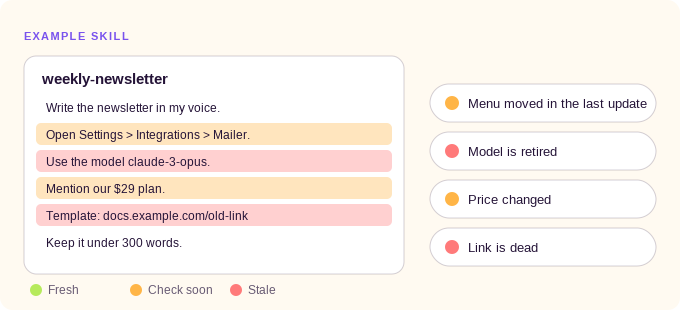
A skill is a saved set of instructions for one job, like writing your newsletter or recapping a call. Claude uses it when your request matches its description. Skills go stale because they mention things that change: menu paths, prices, links, tool names and model names.
Where to find it
- In the Claude app: open Customize, then Skills. Use the switch to turn a skill off.
- In Claude Code: type
/skillsto list them (press t to sort by size), or/skill-doctorto see which ones cost the most and which you never use.
- Weekly: think of the last time you corrected Claude. Put that correction into the skill, so you never make it again.
- Monthly: switch off skills you didn't use, and merge two skills that do the same job.
- Quarterly: run each skill you rely on from start to finish, and fix anything that is out of date.
Check each part
Switch off plugins you don't use
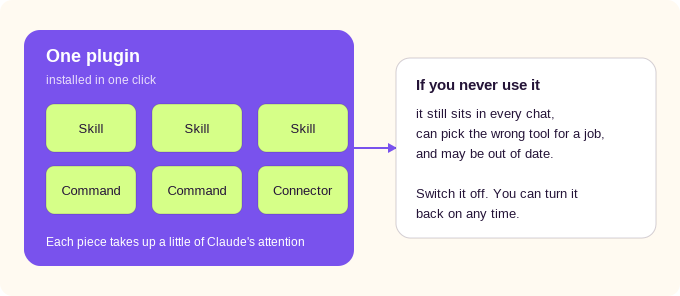
A plugin is a bundle you install in one click. One plugin can bring several skills, slash commands and connectors. That makes them easy to add and easy to forget. Everything a plugin brings sits in Claude's view, even if you never use it.
Where to find it
- In the Claude app: in Cowork, open Customize, then the Plugins tab.
- In Claude Code: type
/pluginto list, enable, disable or install plugins.
- Monthly, go down the list and ask: did I use this in the last month?
- If not, disable it. You can turn it back on any time.
- Update the ones you keep, so you get fixes from whoever makes them.
Check each part
Clean up what Claude remembers
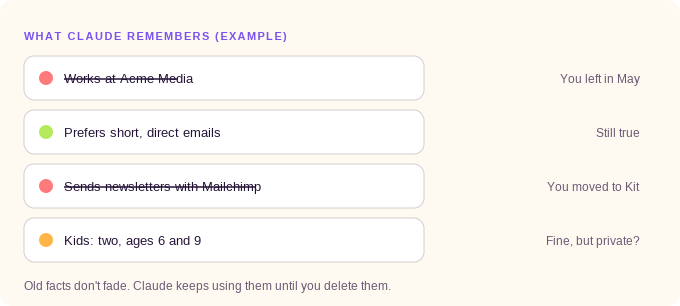
Memory is what Claude remembers about you between chats: your job, your tools, how you like things written. Old facts don't fade on their own. If memory still says you use Mailchimp after you moved to Kit, Claude will keep suggesting Mailchimp.
Where to find it
- In the Claude app: open Settings, then Your Claude, and choose Manage next to Your memory. Pick a topic to read, edit or delete it. On older layouts it sits under Settings > Memory.
- In Claude Code: type
/memoryto open your CLAUDE.md files and see what Claude Code has saved in its own memory.
- Monthly, read it top to bottom. Delete anything wrong or out of date.
- Look for memory that contradicts your instructions. Keep one source of truth, usually your instructions.
- Remove personal details you would rather Claude didn't keep.
Check each part
Reread instructions and replace old files
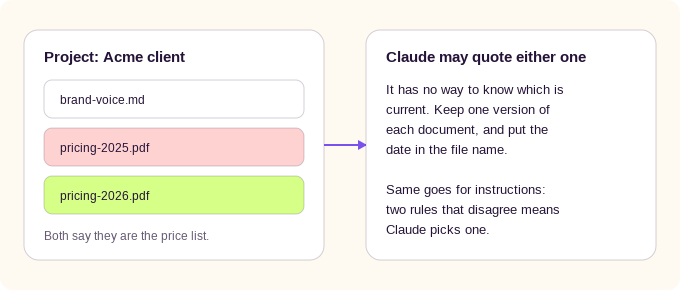
Instructions are the standing rules you give Claude: your personal preferences in Settings, the instructions on a Project (a workspace for one client or topic), and CLAUDE.md if you use Claude Code. Project files are the documents you upload so Claude can draw on them. Both go stale as your business changes.
Where to find it
- In the Claude app: open the Project. Its instructions are under Project instructions, and its files are in the knowledge panel on the right.
- In Claude Code: open
CLAUDE.mdin the project folder, or type/memory.
- Monthly, reread every rule and ask: is this still true?
- Delete rules for tools, people or offers you no longer have.
- Keep one version of each document. Delete the old one instead of uploading a second.
- Put a date or year in file names, so stale ones are easy to spot.
- Claude Code users: every project folder should have a
CLAUDE.md. A project without one starts every session knowing nothing about it. Ask Claude to draft one from the code, then check what it guessed.
Check each part
Check scheduled tasks are still worth running
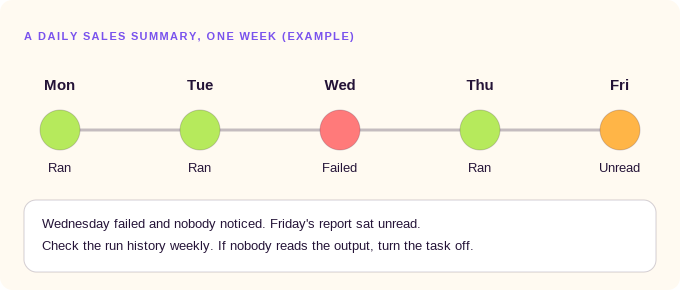
A scheduled task, also called a routine, is a job Claude runs on its own on a timer, like a Monday sales summary. These are the easiest things to forget, because they run while you're not looking. A task can fail for days, or keep producing reports nobody reads.
Where to find it
- In the Claude app: cloud routines live at claude.ai/code/routines. Click Show there too: routines set up from Slack, a Project or a session are hidden by default. Tasks that run on your computer are under Scheduled in the desktop sidebar. Click one to see its History, including skipped runs, and use the Status switch to pause it.
- In Claude Code: type
/scheduleto list, update or run your cloud routines.
- Weekly, glance at the history. Any red runs? Any task that has never run at all?
- Monthly, list every routine, hidden ones too, and note how often each runs. A routine that fires twice a day is about 60 runs a month, and each one uses your plan.
- Monthly, ask for each task: does anyone still read what it makes? If not, pause or delete it.
- After the Claude app updates, open each task and check it still runs.
Check each part
Check model names and rotate keys
A model is the version of Claude doing the work. Anthropic retires old models on a schedule. If a skill, script or routine names a model by its exact name, it will stop working when that model retires. Keys (passwords for apps, also called API keys) go stale differently: the longer they live and the more places they've been pasted, the riskier they get.
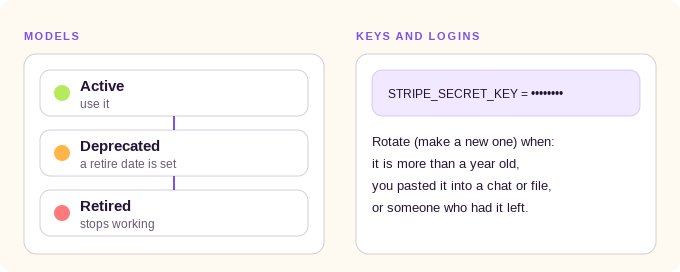
- Quarterly, search your skills, code and routines for
claude-followed by a version, and check each against Anthropic's model deprecations page. - Rotate a key (make a new one in that app and delete the old one) when it's old, was pasted into a chat or file, or someone who had it left.
- Never put a key inside a skill or instructions. Claude Code projects keep them in a
.envfile that never goes to git. - Claude Code users: review
~/.claude/settings.jsonand the project's.claude/settings.jsonwith/permissionsand/hooks.
Make it a habit
Let Claude run the check for you
You don't have to do all of this by hand. Claude can audit its own setup. Paste the prompt below into a new chat, or into Claude Code inside a project folder. It looks at what it can see, marks each part Fresh, Check soon or Stale, and gives you the three fixes worth doing first. It changes nothing on its own.
Run a read-only health check of my Claude setup. I am not technical,
so explain each term the first time you use it.

Rules: change nothing, delete nothing, never print a password or key
(name it only), and say what you could not see.

Check each area and mark it Fresh, Check soon or Stale, with one line
why: connectors (pairs to one app, unused, tools that send or delete),
skills (overlaps, broken or moved skill folders, old menu paths, model
names, prices, links), plugins, memory (old or contradicting facts,
index entries for missing files, saved notes the index leaves out),
instructions (profile, Project, CLAUDE.md, projects missing one),
Project files (old versions, duplicates), scheduled tasks (never ran,
failing, unread, or finished one-offs), pinned model names, keys and
logins, and in Claude Code also settings.json permissions and hooks,
including rules for tools, connectors or folders that no longer exist.

Then give me: a score (areas fresh out of areas checked), a table of
area, status and why, the 3 fixes to do first with exactly where to
click or what to type (if only I can fix it, name the exact screen or
command), a "check by hand" list for what you could not see, and the
date for my next check one month from today.

Finish by asking if I want help with fix 1. Do nothing until I say yes.
When fixes are done, rerun the checks and show me before and after.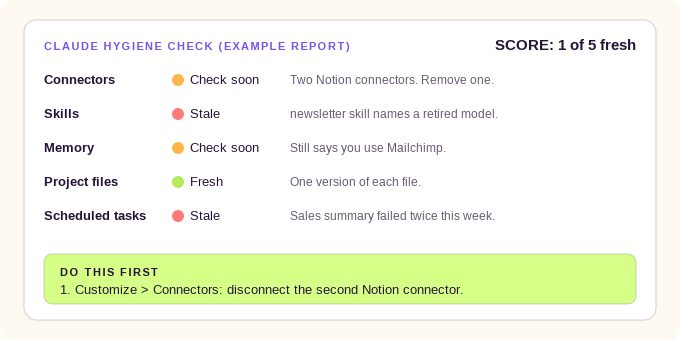
- In the Claude app it can see its connectors, memory and the Project you are in. It can't open Settings, so it lists what to check by hand.
- In Claude Code it can also read your skills, settings and CLAUDE.md, so the report goes deeper.
- Working on one area? Say "hygiene check, memory only" (or any other area) to check just that one.
- Do the top three fixes. Leave the rest for next month.
- When you have fixed things, ask Claude to run the same check again and show you a before and after table. Keep the first report: it is your proof of what changed.
Make it a habit
Make it two words with the skill
The free download includes the same check as a skill, called claude-hygiene-check, plus the connector-permissions-audit skill. Install them once, and from then on you just say "hygiene check" or "audit my connector permissions".
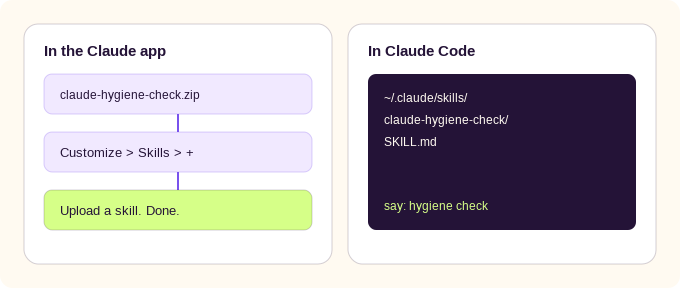
- Claude app: make sure Settings > Capabilities > Create and edit files is on. Then open Customize > Skills, click +, choose Create skill, then Upload a skill, and pick the zip.
- Claude Code: unzip it so the file sits at
~/.claude/skills/claude-hygiene-check/SKILL.md, then start a new session. - Install the second zip the same way.
- Test it: type "hygiene check" in a new chat.
Make it a habit
Put the checklist where you'll see it
The routine only works if you remember it. The free checklist sorts every check into six areas, one card each: connectors, skills and plugins, memory, instructions and files, routines, and models and keys. Each card says where to go and tags every task weekly, monthly or quarterly, so you can work through one area at a time.
Page two has a year tracker with a row per area, the do-it-now list and a one-line prompt for each area. Page three has the full hygiene check prompt and a plain-words glossary.
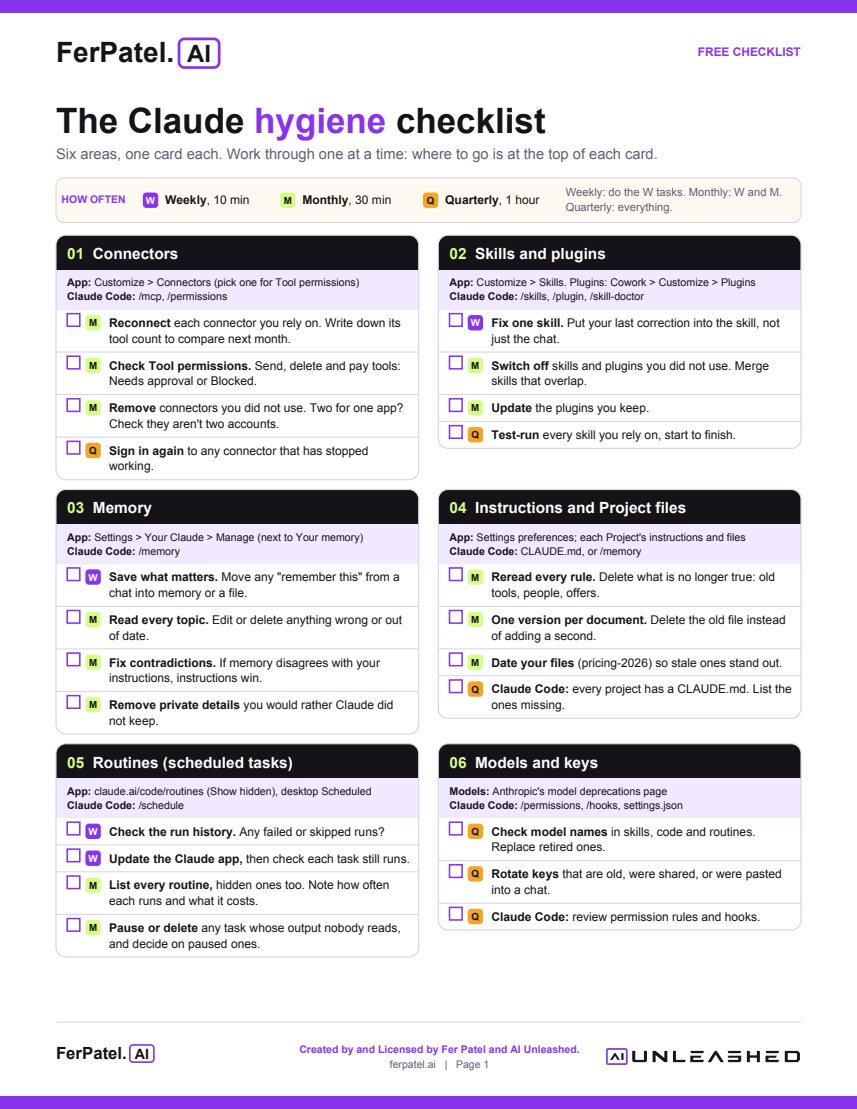
- Print it and stick it near your desk, or pin the PDF to your desktop.
- Add two calendar reminders: weekly, 10 minutes, and monthly, 30 minutes.
- At each monthly check, take one card at a time, do its tasks and tick that area for the month.
Get the checklist and the audit skill
The one-page printable checklist, the hygiene check prompt and the installable skill, free in your inbox.
 Printable checklist3 pages, six areas, each task tagged weekly, monthly or quarterly.
 Hygiene check skillSay "hygiene check" and it marks each part Fresh, Check soon or Stale.
- Connector audit skillReviews every tool your connectors give Claude.