
Set up Claude Cowork and hand it your first task
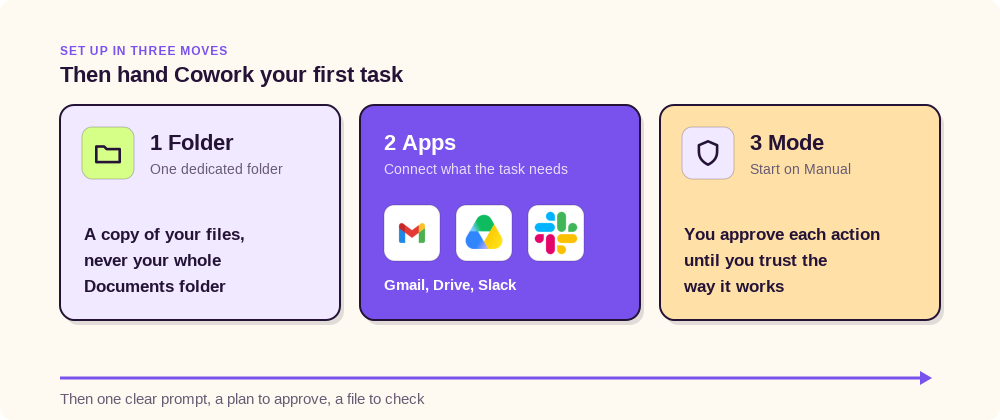
Cowork does real work in your files and apps, so the set-up matters. This guide gets you from nothing to a finished first task: one dedicated folder, the apps you choose, a safe approval mode, and a prompt that works.
Based on Anthropic's Introduction to Claude Cowork course and Help Center, checked October 2026 and rewritten and illustrated by Fer Patel. Names and menus change as Claude changes, so if a label looks different, trust what you see in Claude.
Get set up
Check you can use Cowork
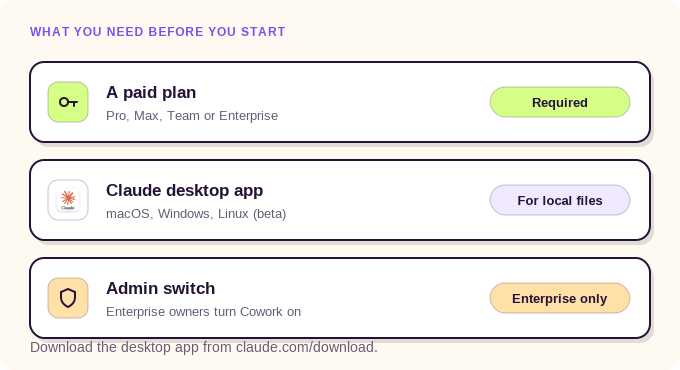
Cowork needs a paid Claude plan: Pro, Max, Team or Enterprise. For anything that touches files on your own computer, you also need the Claude desktop app. It is available for macOS and Windows, with Linux in beta.
- Check that your plan is Pro, Max, Team or Enterprise.
- Download the Claude desktop app from claude.com/download and sign in.
- On Team or Enterprise, ask your admin if Cowork is turned on. On Enterprise, an owner has to enable it.
Get set up
Open Cowork
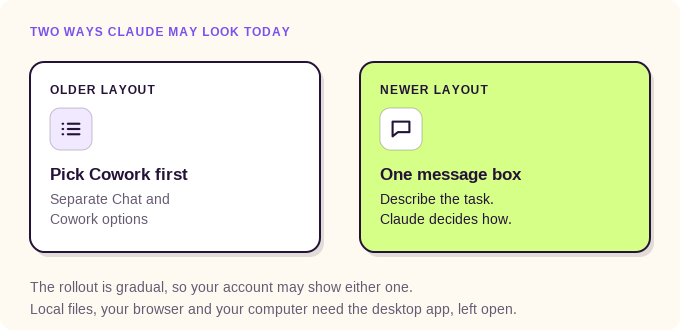
Anthropic is rolling out a version of Claude where Chat and Cowork share one message box, with no mode to choose. You describe the task, and Claude decides whether to answer or do longer work. The rollout is gradual, so your account may still show separate Chat and Cowork options.
- Open Claude on the desktop app, the web or mobile.
- If you see separate Chat and Cowork options, choose Cowork. If you only see one message box, you are already set.
- Keep the desktop app open while Claude works with your local files, your browser or your computer.
Get set up
Connect one dedicated folder
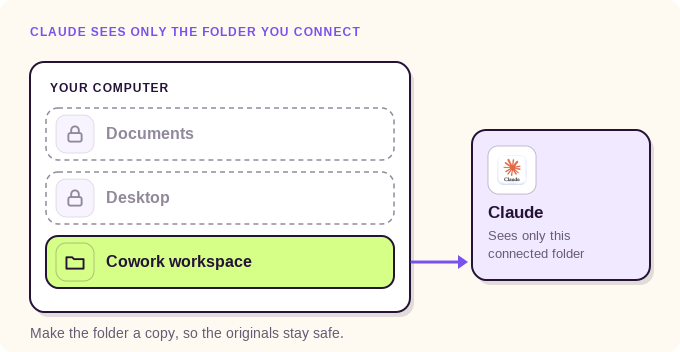
Claude can read and write only in the folders you connect. Pick one folder for the task, and make it a copy of your files so the originals stay safe. Look for the option to work in a project or folder in the message box, then choose your copy.
- Create a folder named for the job, such as "Cowork workspace," and copy the files in.
- In the message box, choose the option to work in a folder or project, and pick that folder.
- Never connect your whole Documents or Desktop folder.
- Back up anything you cannot replace somewhere Claude cannot reach.
Get set up
Connect your apps
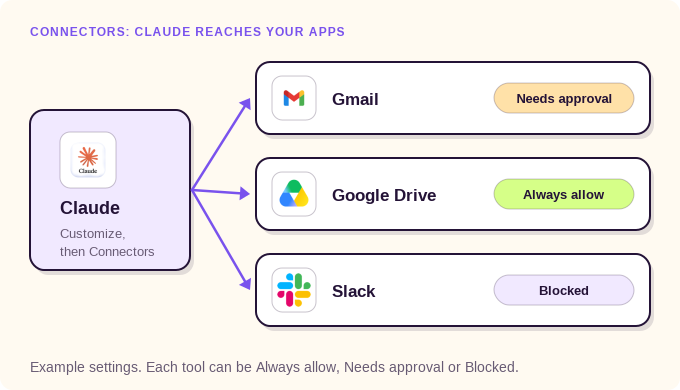
Connectors let Claude pull context from the apps where your work already lives, and take actions in them. You set them up once, then switch on only the ones a task needs.
- Open Customize, then Connectors, or use the plus menu in the message box.
- Add the apps you use, such as Gmail, Google Drive or Slack, and sign in with your own account. Claude can then reach only what your account can open.
- Each connector tool can be set to Always allow, Needs approval or Blocked. Start with Needs approval for anything that can send or change things.
- Switch on only the connectors a task needs.
Stay in control
Pick an approval mode
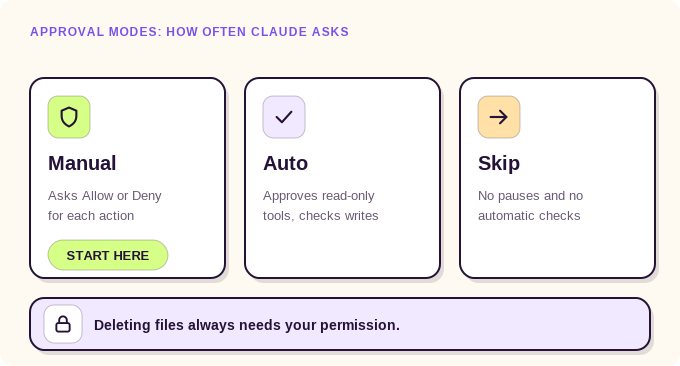
Approval modes decide how often Claude stops to ask before it acts. You change them with the mode selector in the message box. For your first tasks, choose Manual so you see every action.
- Manual: Claude asks you to Allow or Deny each action. Anthropic's older name for it was "Ask before acting."
- Auto: Claude approves read-only tools and checks write and delete actions for safety, blocking unsafe ones.
- Skip: nothing pauses and nothing is checked. Use it only when you fully trust every connector, file and app.
- Anthropic lists Auto as the default on Pro, Max and Team, and Manual on Enterprise, so check which one you are on.
Your first task
Write your first-task prompt
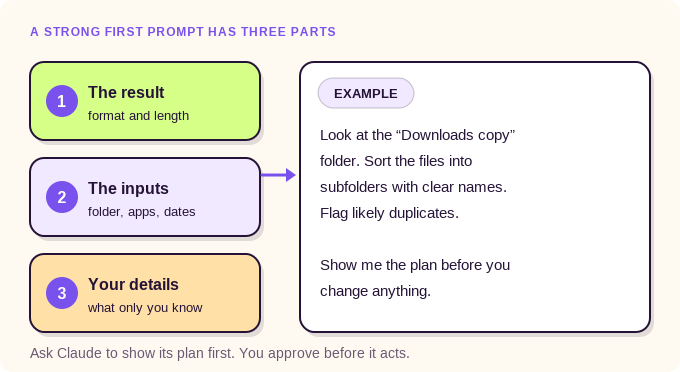
A strong prompt has three parts: the finished result, the inputs, and the details only you know. Start with a task that has clear edges, like tidying a copy of a folder, and ask Claude to show a plan before it changes anything.
- Name the result: its format and length, such as a one-page brief or a ranked list.
- Name the inputs: which folder, which apps, which dates.
- Add what only you know: your preferences, and what to avoid.
- Ask for the plan first, so you approve before anything changes.
Your first task
Run the task loop
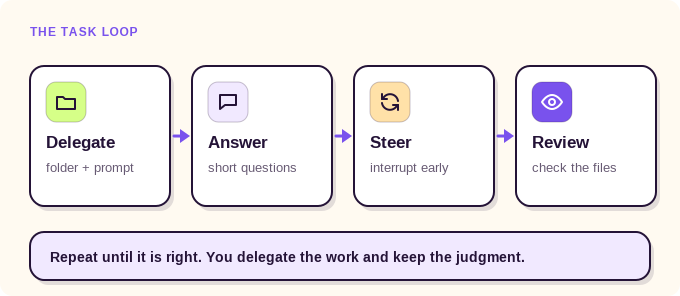
Press go and work through four moves: delegate, answer, steer, review. Claude may ask a few short questions first, often with options to pick from. Then it shows its plan. Read it, say what to change, and approve. Interrupt early if it drifts, because an early correction is cheap.
- Answer the clarifying questions, or type your own answer.
- Read the plan and redirect it before you approve.
- Watch the progress, and stop the task if it goes off track.
- When it finishes, check the files, and ask Claude which documents it used.
Get the free Cowork first-task kit
A fill-in prompt template for your first task, plus a set-up checklist covering the plan, the folder, your apps and the approval mode, on two pages you can print or paste into Claude.
 Prompt templateA fill-in prompt with the three parts and a plan-first line.
 Set-up checklistPlan, folder, apps and mode, one box each.