
Give Cowork standing context: global instructions and projects
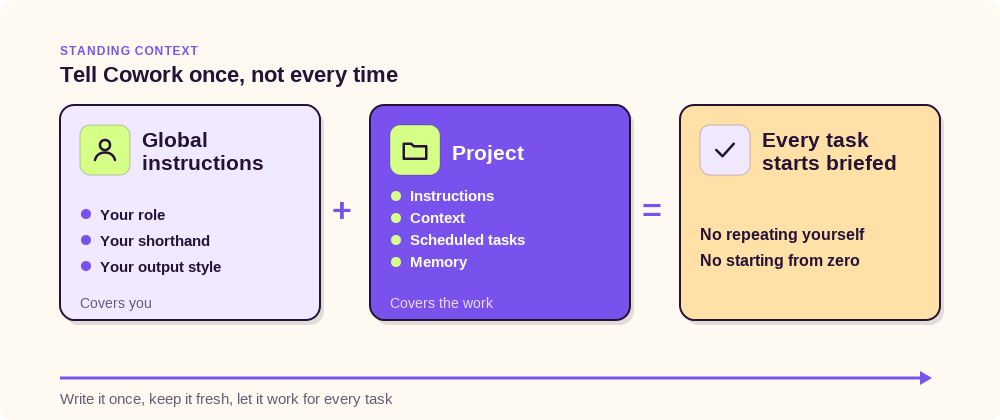
Outside a project, Cowork starts each session fresh. Global instructions and projects fix that. You tell Claude who you are and how you work once, and how each stream of work runs, so every task starts already briefed.
Based on Anthropic's Introduction to Claude Cowork course and Help Center, checked October 2026 and rewritten and illustrated by Fer Patel. Projects are being redesigned, so menu names and screens may differ from what you see.
Why it matters
See what Claude forgets
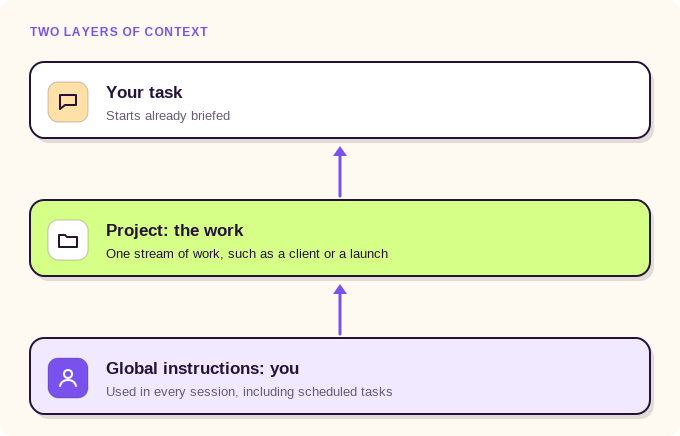
Outside a project, each Cowork session starts fresh, apart from your global instructions. That is why you end up repeating yourself. Two layers fix it. Global instructions cover you. Projects cover the work.
- Global instructions: a standing brief Claude uses in every session, including scheduled tasks.
- Projects: a workspace for one stream of work, such as a client account, a recurring report or a launch. Inside a project, every conversation adds to what Claude knows.
Your instructions
Find your global instructions
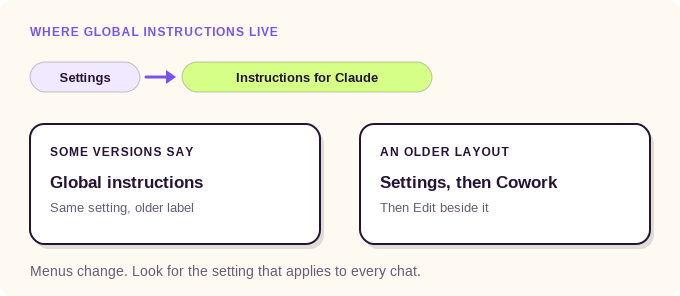
Open Settings in Claude and look for Instructions for Claude. Some versions call it Global instructions, and an older layout has it under Settings, then Cowork, with an Edit button next to it. Menu names change, so look for the setting that applies to every conversation.
- Open Settings in Claude.
- Find Instructions for Claude, or Global instructions.
- Click Edit if you see it, and open the text box.
Your instructions
Write your first block
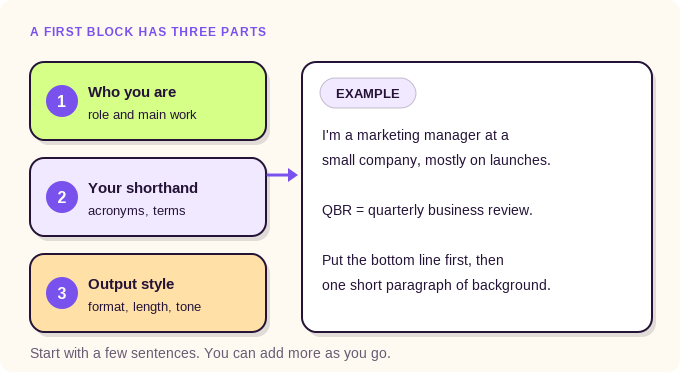
You do not need a perfect brief on day one. Start with a few sentences in three parts. You can also ask Claude to interview you and draft it, then review it before you save.
- Who you are: your role, your company and your main streams of work.
- Your shorthand: acronyms and internal terms, so Claude does not have to ask what they mean.
- How you want output: format, length and tone, such as the bottom line first and background kept to one paragraph.
Your instructions
Keep it fresh
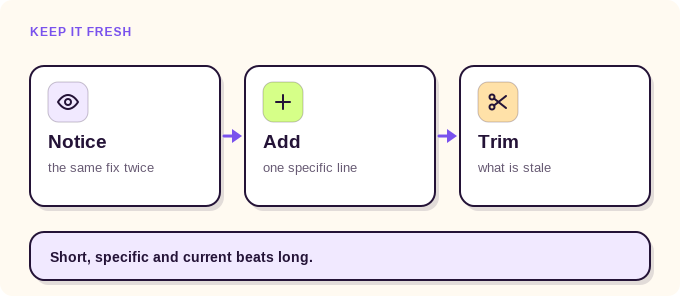
Instructions should grow with you. When you catch yourself giving the same correction twice, add it as one line. When a line stops being true, delete it.
- Add a line when you repeat a correction, such as a preferred style.
- Make each line specific. "Put the bottom line first" beats "be clear."
- Trim lines that are stale or were only for one job.
- If you also use Claude Code, CLAUDE.md plays a similar role there.
Your first project
Create a project
Create a project for one stream of work that keeps coming back, such as a client account, a monthly report or a launch. Projects need the latest Claude desktop app, and they are not available in Claude Code.
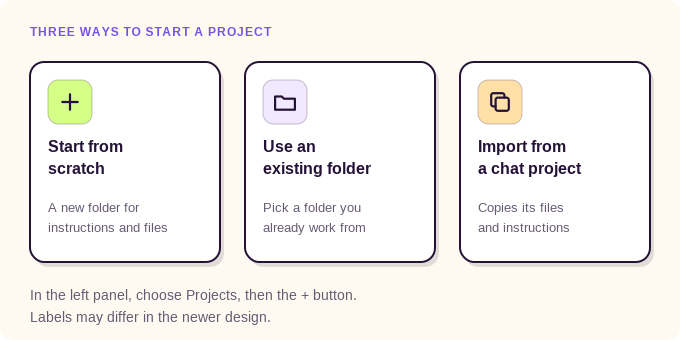
- In the left panel, choose Projects, then the + button.
- Pick a starting point: start from scratch, use an existing folder, or import from a chat project.
- Name the project, choose where to save it, add instructions and any extra files, and click Create.
- You can change the folder, instructions and connectors later.
Your first project
Fill your project
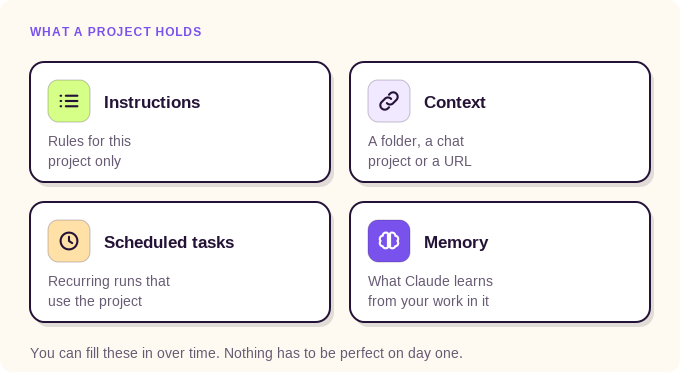
A project has four parts, and you can fill them in over time. On Team and Enterprise plans you can also share a project with colleagues.
- Instructions: like global instructions, but only for this project.
- Context: a local folder, a linked chat project or a URL that every conversation in the project can use.
- Scheduled tasks: recurring runs you set up from a conversation inside the project, for example with /schedule.
- Memory: what Claude learns from your work in the project. It builds on its own, so you do not write it.
Your first project
Control memory
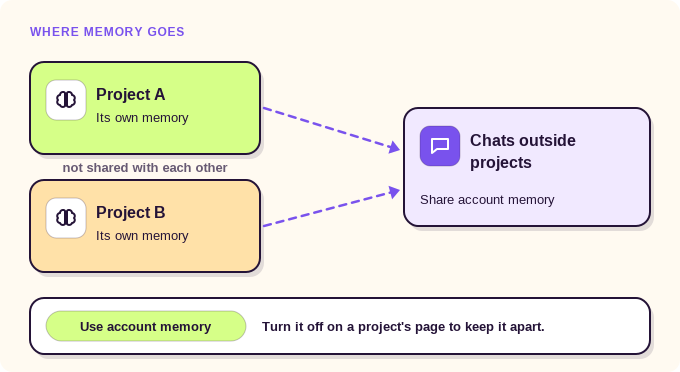
Memory is on for Cowork projects. Claude can use what it learned in earlier tasks in the same project, but not in other projects. Projects also share memory with your chats outside projects, unless you turn that off.
- Let memory build on its own. You do not have to write it.
- To keep one project apart, open the project and turn off Use account memory under Memory.
- To review or delete what Claude remembers, look for Memory in your Settings. The Help Center does not give an exact path for projects, so trust the label you see.
- Keep sensitive work in a project with account memory turned off.
Get the free Cowork context starter
A fill-in global-instructions block you paste in once, a prompt that interviews you to write it, and a one-page worksheet for setting up your first project, on two pages you can print or paste into Claude.
 Instructions blockA fill-in starter, plus a prompt that interviews you.
 Project worksheetName, folder, instructions, schedule and memory on one page.