
Build your first Claude skill
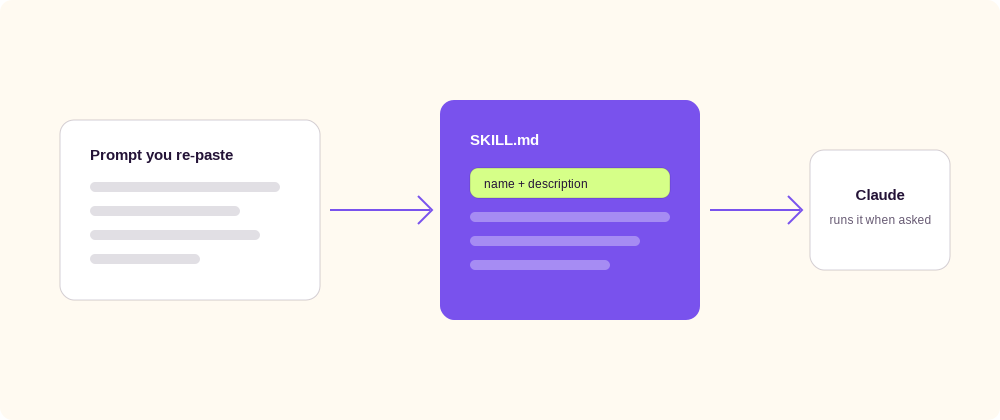
If you keep pasting the same prompt into Claude, you are doing a job a skill can do for you. This guide turns one of your repeat prompts into a skill, shows you how it fires on its own, and explains where Projects fit in.
Understand it
Know what a skill actually is
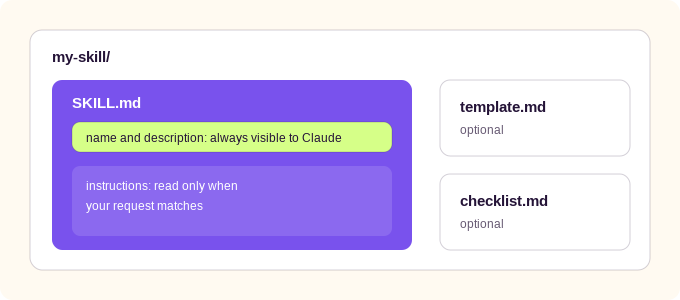
A skill is a small folder with one required file, SKILL.md. The top of that file has a name and a short description. Claude keeps those two lines in mind all the time and only reads the full instructions when your request matches. That is why you can have dozens of skills without slowing anything down.
- The description decides when the skill fires, so it carries the trigger phrases.
- The instructions are your repeatable prompt, written as steps.
- Optional extra files sit beside it: a template, a checklist, a style guide.
Understand it
Decide skill, Project, or both
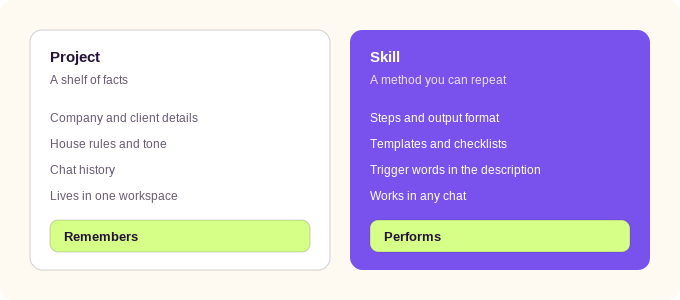
People treat these as rivals, and they are not. A Project is a shelf of facts: your company details, your clients, your house rules, and every chat you have had about them. A skill is a method: the same steps, run the same way, wherever you happen to be working. Facts go in the Project. Methods go in a skill.
- Ask: does this need to remember things about one business or client? That is a Project.
- Ask: do I want the same process every time, in any chat? That is a skill.
- Most of the time the answer is both, and you will connect them in step 8. The skills vs Projects guide goes deeper.
Build one
Pick one prompt you already reuse
Your first skill should come from something you have already done and liked. Do not invent a new process. Open your notes or past chats and find the prompt you paste the most.
- Good first picks: a weekly update, a meeting summary, an SOP writer, a blog outline.
- Choose something where you wish the output came out the same shape every time.
- Have the prompt copied and ready.
Build one
Turn on skill-creator and hand it the prompt
Claude has a built-in skill for building skills, so you do not have to write the file by hand or know any code. Find it once, switch it on, then talk to it like a colleague.
- In Claude, open Customize, then Skills.
- Find skill-creator and make sure it is toggled on.
- Start a chat and say: "I want to create a skill from this prompt so it runs any time I ask for it." Then paste your prompt.
- Answer any questions it asks about when the skill should fire.
Build one
Read what it wrote before you save
Claude will show you the finished skill. Do not skip this. It usually improves your prompt, adds an output format and a quality check, and that is exactly what you should be reading for. Below is a small example in the shape you should expect. It is an illustration, so write your own.
- Check the description: does it include the words you would actually say?
- Check the steps: are they the steps you really follow?
- A strong body has a short overview, the steps, one before-and-after example, a few checks, and a line on what the skill is not for.
- Keep the main file under about 500 lines. Move long reference material, like a full style guide, into a
references/folder beside it. - Delete anything it added that you do not want.
---
name: weekly-client-update
description: Writes a short weekly update email for a client. Use when I say "client update", "weekly update", "write the Friday email" or paste rough notes about what got done this week.
---

# Weekly client update

## What to do
1. Read the notes I pasted. Pull out what was finished, what is in progress and what is blocked.
2. Write the email using the structure below.
3. Keep it under 150 words. Plain language, no jargon.

## Structure
- One line of good news first
- Done this week (3 bullets at most)
- Next week (3 bullets at most)
- One question for the client, only if I need an answer

## Check before sending it back
- Every claim comes from my notes. Nothing invented.
- No em dashes. Reads like a person wrote it.
Build one
Save it so Claude can use it
In the app, you can usually just save the skill from the chat that built it. If you wrote the folder yourself, you zip it and upload it instead. Either way it ends up in your skills list.
- App route: press Save skill and confirm it shows in Customize.
- Manual route: put SKILL.md in a folder named after the skill, zip the folder, and upload it in the Skills page.
- If uploading is greyed out, check that code execution and file creation are switched on in your settings.
- Custom skills need a paid plan. Free plans can still use the skills Anthropic provides.
- Claude Code route: drop the folder into a skills folder. Guide 2 shows where.
Can't see the .claude folder? (Mac)
Folders that start with a dot are hidden by default. Open Finder, go to your home folder or your project folder, and press Command + Shift + . (period) to show them. Press it again to hide them.
Use it
Test it with a messy, real request
Do not test with a polished prompt. Test the way you will really use it: half a sentence and some rough notes. A good skill copes with that.
- Open a new chat and write plainly, for example: "turn these notes into the Friday update" and paste something untidy.
- Then try it by name. Type / and pick the skill from the list.
- If it did not fire on its own, add the phrases you used to the description and try again.
- Paste your SKILL.md into a chat and ask: "Review this skill and tell me how to make it trigger more reliably and give better output."
Use it
Pair it with a Project for the facts
This is where the two work together. Put your background in a Project: who the business is, who the clients are, the tone you like. Then run the skill inside that Project. The skill brings the method and the Project brings the facts, so you can write a short request and still get a complete result.
- Make a Project for one client or one business and add the files that describe it.
- Keep the skill free of client details so you can reuse it everywhere.
- Open a chat in the Project and ask for the job in plain words.
- Then add a second and third skill that pull from the same Project. The payoff grows with each one.
- Now and then run the same request in a plain chat with no Project, so you can see what the Project adds.
Use it
Pick your next skills
Once one skill works, build the ones that feed on the same background. A few that pay off quickly for most people are below. Each is one job, so you can stack them instead of cramming everything into one.
- Writing voice: how you sound, and the words you never use.
- Audience: who you write for, how they talk, and what gets them to act.
- Meeting recap: what was decided versus only discussed, with an owner and date for each action, and nothing invented.
- Content from a recording: one transcript turned into posts and an article.
- Decision check: argues against a big move before you make it.
- Project notes: a short file Claude reads at the start and updates at the end, so a new chat knows where you left off.
- Competitor teardown: what they say, what they charge, and marked unknown where the site is silent.
Use it
Know where skills live, and keep them safe
Skills in the Claude app are yours, and they follow your account. In Claude Code you also choose a location: a global skill sits in your home folder and works in every project, and a project skill sits inside one repo and travels with it. That choice has its own guide.
- Read Global vs project skills in Claude Code if you use Claude Code.
- Only install skills from people you trust. A skill can include scripts, so read it first.
- To update a skill someone else made, download their newer version and replace your copy. There is no automatic update, so note where you got it.
Start with the free skill template
A ready-to-edit SKILL.md with the name, description, steps and checks laid out, so your first skill takes minutes.
 Skill templateA SKILL.md with a note on every part, ready to fill in.