
Reach beyond your files: scheduled tasks, Chrome and Microsoft 365
Cowork does not have to stop at the folder on your computer. This guide shows how to run a task on a schedule, how to use Claude in Chrome on sites that have no connector, and how to work inside Word, Excel, PowerPoint and Outlook, with the guardrails to keep it safe.
Based on Anthropic's Introduction to Claude Cowork course and Help Center, checked October 2026 and rewritten and illustrated by Fer Patel. Where tasks run, and the names of menus and modes, change often, so trust the labels you see in Claude.
Run it on repeat
Choose a task worth repeating
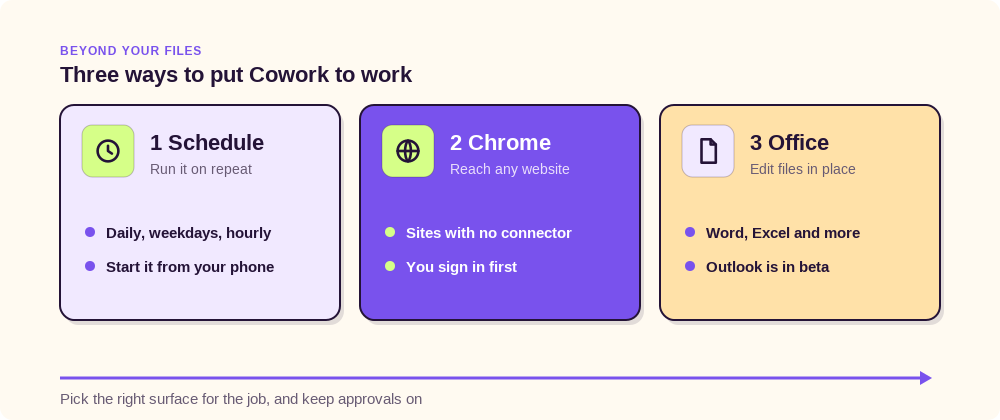
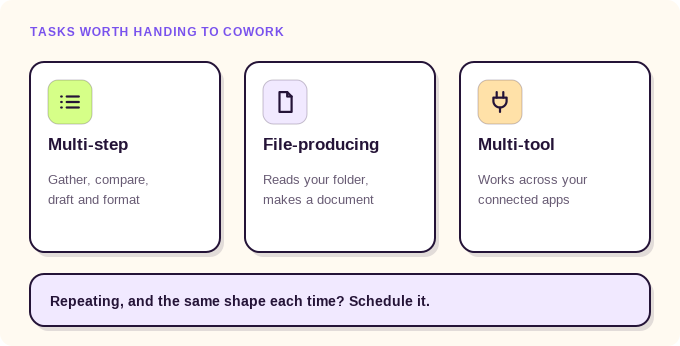
Cowork fits three kinds of work: multi-step tasks, where Claude gathers context, compares sources and drafts; file-based tasks, where it reads your folder and produces a document, spreadsheet, deck or PDF; and multi-tool tasks, which span connected apps such as Gmail, Slack, Microsoft 365 and your calendar. The best ones to schedule have the same shape every time. Never run one before? Start with guide 2.
- Look at your calendar or to-do list for the week.
- Pick one task that is multi-step, file-producing or tool-using.
- Prefer a task you repeat on a rhythm, such as a weekly summary or a Monday inbox triage (examples).
Run it on repeat
Schedule it
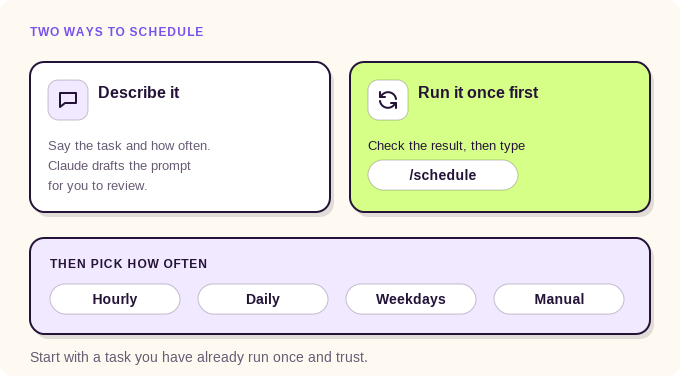
Type /schedule in Cowork. There are two routes, and the second is the more natural one.
- Describe the task and how often. Claude drafts the prompt for you to review and accept.
- Or run the task once, check the output, then type /schedule to make that exact process recurring.
- Pick how often: hourly, daily, weekdays or manual.
- Keep scheduled tasks simple, and read their results.
Run it on repeat
Know where it runs
Where a scheduled task runs depends on what it touches. This is the part that surprises people, so check it for each task.
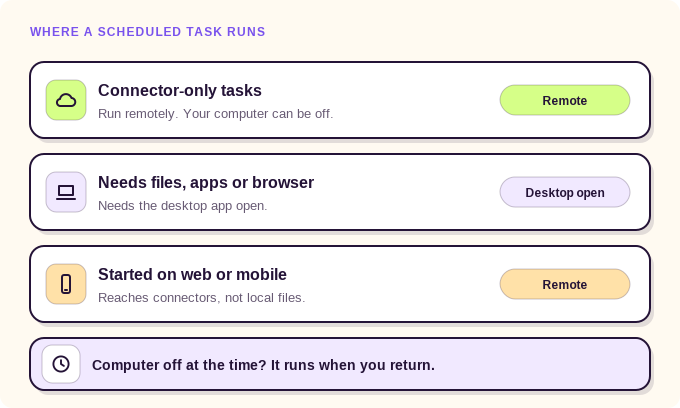
- Tasks that use only connectors run remotely at the set time, so your computer can be off. Tasks that need local files, your browser or your computer need the Claude desktop app to be open.
- If your computer is closed, asleep or off at that time, Claude runs the task when you return and tells you it was delayed.
- Anthropic's Help Center says new scheduled tasks on Pro and Max now run in the cloud, but local files, your browser and computer use still need the desktop app open.
- You can also start or check tasks from the web or the Claude mobile app. They reach your connectors, not files that live only on your computer, and a task stays where it started. If your organization manages Claude, an admin decides whether remote access is on.
Reach the web
Use Claude in Chrome for sites with no connector
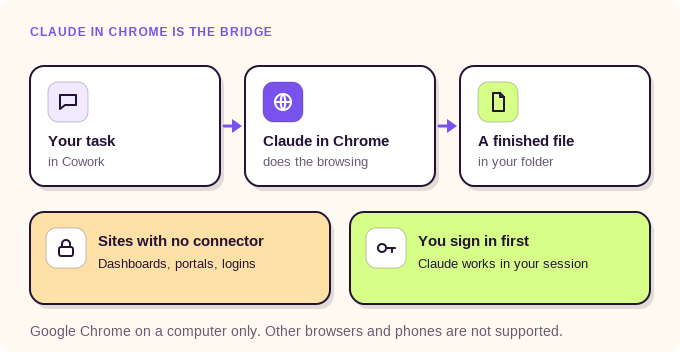
Claude in Chrome lets Claude read web pages, click through them and navigate sites for you. It is the bridge for tools that have no connector: internal dashboards, vendor portals, customer systems behind single sign-on, and logged-in web apps. You give the task to Cowork in one conversation. Cowork hands the browser steps to Claude in Chrome, then combines the results with your files and chats into one finished file.
- Sign in to the site in Chrome yourself first. Claude cannot log in for you, and it works inside your session.
- Use Google Chrome on a computer. Other browsers and phones are not supported.
- Ask Cowork for the finished result and name the site, for example "pull every yellow or red account from our customer dashboard and write a one-page summary" (an example).
- For installation, follow Anthropic's Get started with Claude in Chrome article.
Reach the web
Set the browser guardrails
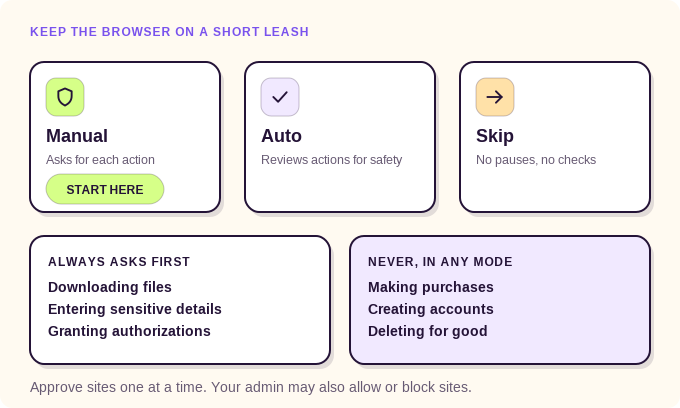
Claude can reach anything you can reach on the web, so scope it deliberately. Pick a permission mode in the drop-down on the chat input: Manual, Auto or Skip. Anthropic's Chrome guide lists Auto as the default in the Cowork side panel, so check which one you are on.
- Start on Manual, so you approve each action.
- When Claude reaches a site that needs approval, allow a single action rather than always allowing the site, at least at first.
- Manage approved sites in the extension settings, on the Permissions page.
- Know what never changes: Claude still asks before downloads, entering sensitive details and granting authorizations, and it never makes purchases, creates accounts or deletes permanently. On Team and Enterprise, admins can allow or block sites.
Work in Office
Add Claude to your Office apps
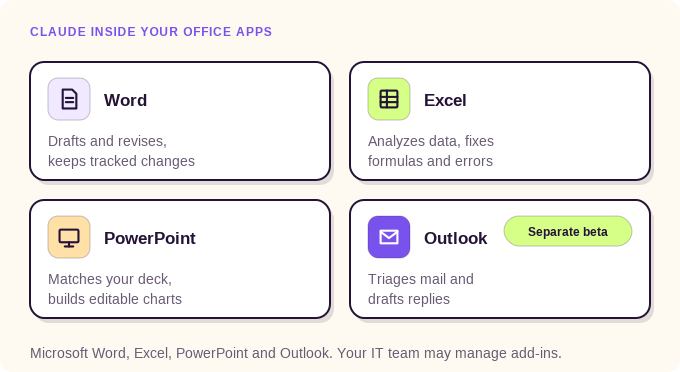
Claude for Microsoft 365 is an add-in that works inside Microsoft Word, Excel, PowerPoint and Outlook, on the files and mailboxes you already have open. In Excel it analyzes data, writes formulas and fixes errors. In PowerPoint it matches your slide master and builds editable charts. In Word it drafts and revises, with comments and tracked changes. In Outlook it triages mail and drafts replies.
- Excel, PowerPoint and Word share one listing in Microsoft AppSource: search for Claude for Microsoft 365. Outlook is a separate beta with its own listing.
- Open the app, activate the add-in, and sign in with your Claude account. A paid plan is required.
- Install the one for the app you use most first.
- Your IT team may manage add-ins centrally, so check with them before you install.
Work in Office
Pick the right surface
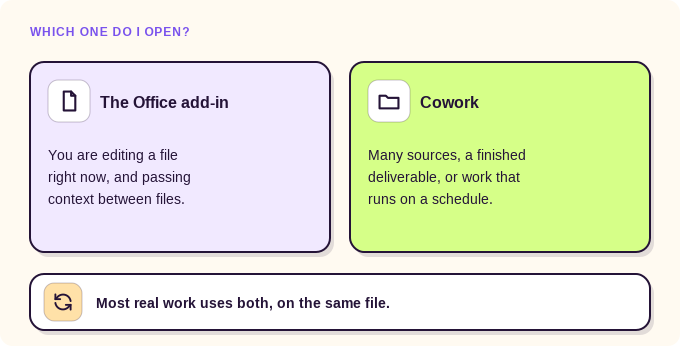
Use the add-in when you are editing an Office file directly and passing context from one file to another. Use Cowork when work draws on many sources and ends in a finished deliverable, or runs on a schedule. Most real work uses both, and the same file serves both.
- A quick edit in the file you have open: the add-in.
- A brief built from many sources: Cowork.
- A weekly report that builds itself: Cowork, scheduled.
- Working across apps in one conversation: install all four add-ins, and look for the setting called Let Claude work across files in each one. Anthropic lists it as on by default for Pro and Max and off for Team and Enterprise.
Get the free Cowork which-tool kit
A one-page sheet for choosing between a connector, Claude in Chrome and an Office add-in, plus a fill-in prompt for a recurring task and a safe-browsing checklist, on two pages you can print or paste into Claude.
 Which-tool cheat sheetConnector, Chrome or Office add-in, one row per job.
 Schedule promptA fill-in prompt for a task that runs on repeat.