
Use Cowork safely, and share it with your team
Cowork can read your files and act in your apps, so a little care goes a long way. This guide covers where the real risk is, how to set boundaries and write careful prompts, what to check while it works, when to pick another tool, how to keep an eye on usage, and how to hand a tested plugin to your team.
Based on Anthropic's Introduction to Claude Cowork course and Help Center, checked October 2026 and rewritten and illustrated by Fer Patel. The course does not cover usage limits or models, so those parts come from the Help Center. Mode names and sharing settings differ between sources and change often, so trust the labels you see in Claude.
Set up for safety
Know where the real risk is
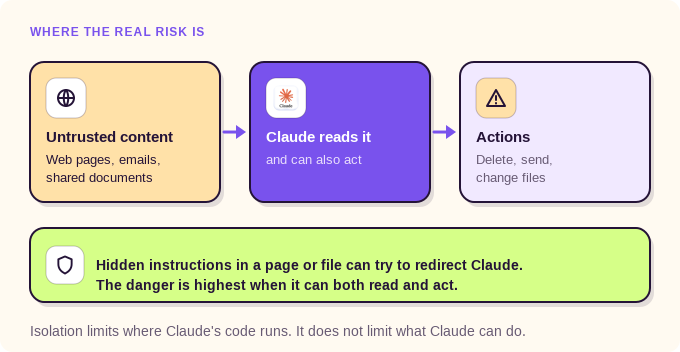
Cowork runs in an isolated environment, which limits where its code runs. It does not limit what Claude can read or do inside the folders and apps you connect. So the risk to plan for is not Claude breaking your computer. It is Claude acting on something it should not.
- Prompt injection: a web page, email or shared document can hide instructions that try to redirect Claude. The danger is highest when Claude can read untrusted content and also take actions.
- Unwanted deletion: Claude needs your explicit permission before it permanently deletes files, but a loose request can still change or move more than you meant.
- Connected apps: anything you connect, such as email or chat, is something Claude can act in.
Set up for safety
Set boundaries first
Decide what Claude can reach before you give it any task. Boundaries are easier to set once than to repair after.
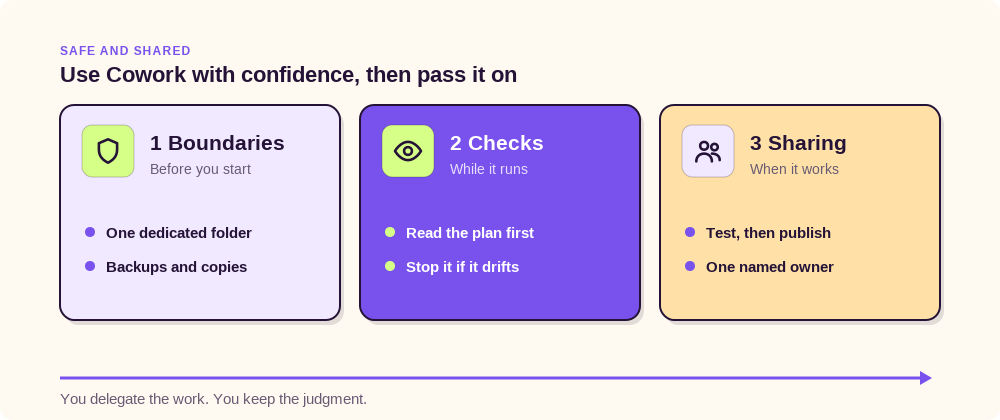
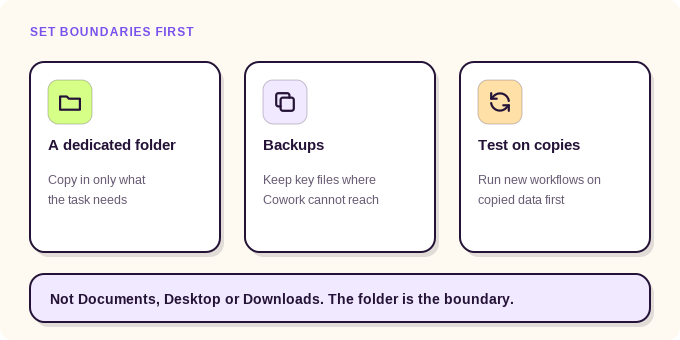
- Use one dedicated working folder. Copy in only what the task needs. Do not point Cowork at Documents, Desktop or Downloads.
- Keep backups of anything you cannot replace somewhere Cowork cannot reach.
- Test a new workflow on copies of your files before you run it on the real ones.
Set up for safety
Write prompts with no room for the wrong action
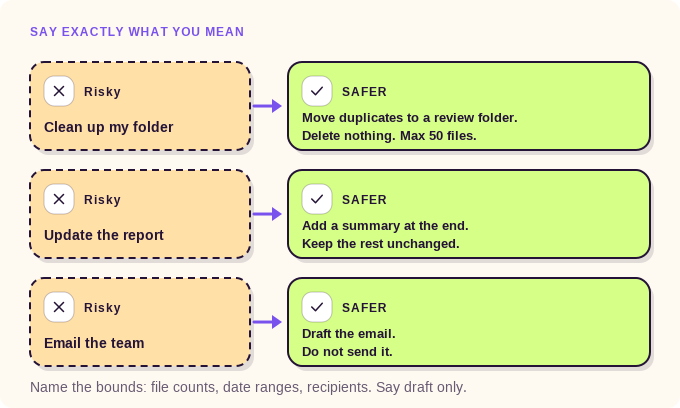
Vague verbs leave Claude room to guess. Say exactly what should happen to each file, and what must not.
- Use exact verbs. "Move duplicates to a review folder" is clearer than "clean up".
- Name the bounds: a file count, a date range, the recipients.
- Say "draft only" for anything that sends, posts or shares, so nothing goes out until you press send.
- For a scheduled task, have it draft first, and read the result before you let it act.
Stay in control
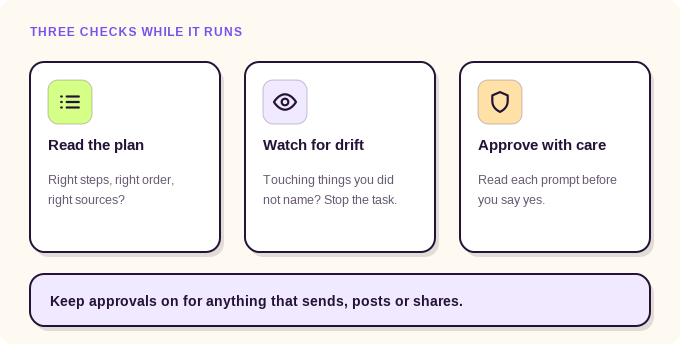
Run three checks while it works
Cowork shows what it is doing, so you can catch a problem early. Make these three checks a habit.
- Read the plan in the progress tab. Are the steps, order and sources right?
- Watch for drift. If Claude starts touching things you did not name, stop the task.
- Approve each confirmation deliberately. Read what it is asking before you say yes. Manual mode, which Anthropic's older material calls "Ask before acting", has Claude ask before each action.
Stay in control
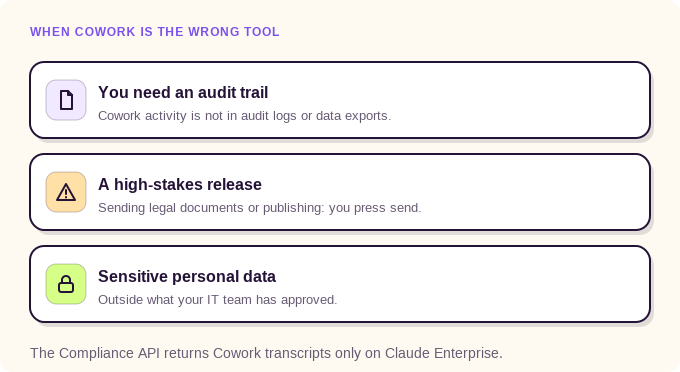
Know when not to use Cowork
Some work should stay with a person, or with a tool built for it.
- Regulated work that needs an audit trail. Cowork activity is not captured in audit logs or data exports, and the Compliance API returns Cowork transcripts only on Claude Enterprise.
- The final release of a high-stakes action, such as sending a legal document or publishing. Let Claude prepare it, and press send yourself.
- Sensitive personal data outside the boundaries your IT team has approved.
Keep it going, and share it
Watch your usage and pick a model
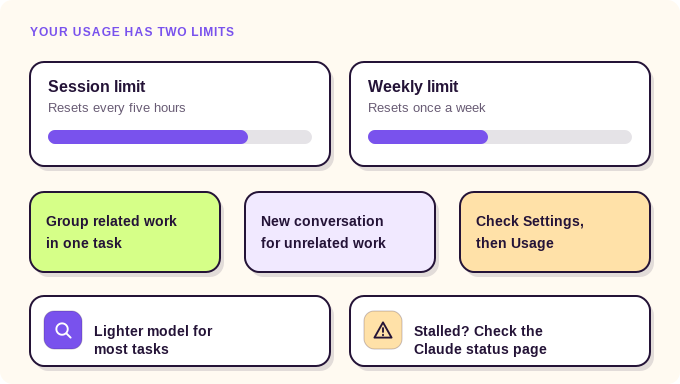
Anthropic's Help Center says paid plans have a five-hour session limit and weekly limits, and that multi-step tasks use more of them than a chat message does.
- Group related work in one task, and start a new conversation for unrelated work.
- Check your usage in Settings, then Usage.
- Use a lighter model for most tasks. The model guide explains how to choose.
- If a task stalls, check the Claude status page before you change anything.
Keep it going, and share it
Share a tested plugin
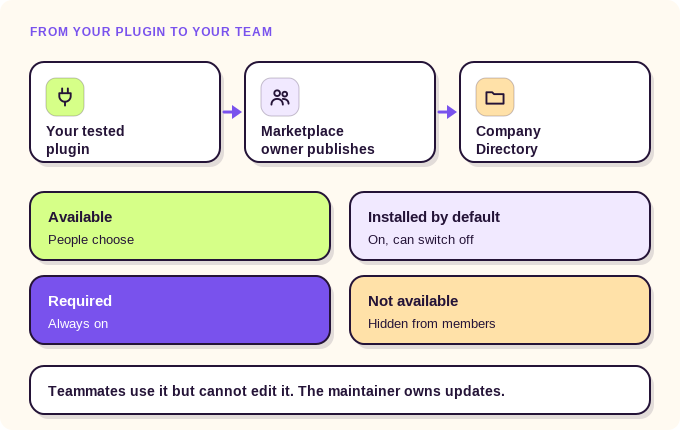
When a plugin works, hand it to the person who runs your organization's marketplace. They publish it, and your teammates get it without rebuilding it. Plugins and skills are covered in guide 4.
- The Academy course describes three levels: Available, Installed by default and Required. The Help Center lists four admin settings, adding Not available. Use the labels you see.
- Teammates can use a shared plugin, and turn it off unless it is required. They cannot edit it, and they stay on the approved version until an update is approved.
- Name one owner who maintains it and owns every update.
- Run your tests before each publish, use specific names, and review what you have shared every quarter.
Get the free Cowork safe-and-team kit
A safe-work checklist, prompt rules, the three checks, a when-not-to-use list and a team rollout checklist, on two pages you can print or paste into Claude.
 Safe-work checklistBoundaries, prompt rules and the three checks.
 Team rollout checklistTest, name an owner, publish, review.